Getting Started with MakanCloud: From Sign-up to Your First Receipt
By Alex · Founder, MakanCloud · 6 October 2026
Signing up for a restaurant system takes two minutes. Getting it to print a kitchen ticket for your own char kway teow is a different job. Most owners who stall in a trial do not stall because the software is hard. They stall because they log in to an empty back office and nobody has told them what comes first.
This guide is that order. Getting one outlet ready to trade takes seven jobs:
- 1. Create your account (about 2 minutes)
- 2. Set GST and service charge, and create a POS terminal (about 5 minutes)
- 3. Open the POS for the first time, bind the terminal, open a shift (about 2 minutes)
- 4. Load your menu (around 15 minutes for a few dozen dishes via Excel)
- 5. Add dish photos
- 6. Check your payment methods
- 7. Connect the receipt and kitchen printers
You can finish the first three on day one. Jobs four to seven are where the time goes: typing menus, finding photos, working out a printer's IP address. For a limited time we will do those parts for you, free. The details are near the end of this guide.
Button names below are as they appear in the English interface. You can switch to Chinese at any time with the 中 / EN toggle.
Step 1: Create your account
Go to the sign-up page. The form has two parts:
- Your brand: your Restaurant / brand name and a Business type (restaurant, café, bakery or other).
- Admin account: a Username using letters, numbers and underscores only; your Mobile / WhatsApp, which is required because we use it to help you get set up; an optional Email for billing notices; and a password of at least 8 characters.
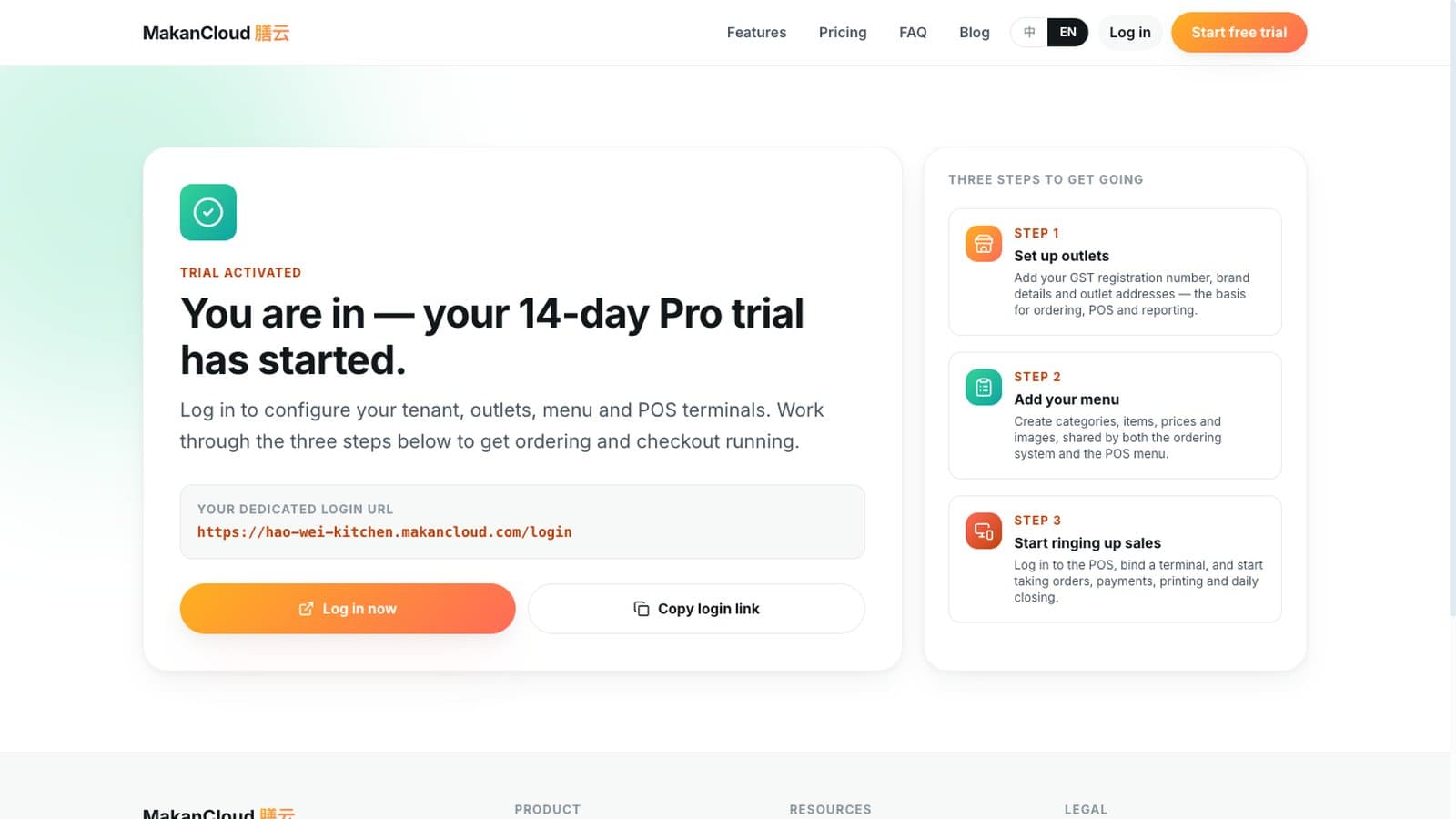
Click Start my 14-day free trial. You are on the Pro plan for 14 days with no credit card required. The confirmation page shows your dedicated login address, in the form `https://your-code.makancloud.com/login`. The code is generated from your brand name, so Hao Wei Kitchen becomes `hao-wei-kitchen`. Click Copy login link and keep it; that is where you log in from now on.
Sign-up also creates your first outlet ("<brand> 总店", which you can rename) and four tables, T1 to T4. The account you just created is the System Admin, the highest role in your workspace.
Step 2: Three settings in the back office (do not skip the last one)
Log in and open the System menu at the top.
Tenant Settings. Under System admin, open Tenant Settings and fill in:
- GST Registration No.: leave it blank if you are not GST-registered.
- GST Rate: a decimal, so 0.09 means 9%.
- Service Charge Rate: also a decimal, so 0.10 means 10%. Enter 0 if you do not charge one.
- POS Checkout Mode: Counter for quick-service shops and cafés where customers order and pay at the counter; Table Service for dine-in restaurants, with a table map where orders are kept open by table and settled at the end of the meal.
Click Save Settings.
Outlet Management. In the same menu, add your outlet's address and phone number. They appear on receipts and reports. A second outlet is added here too, with New Outlet.
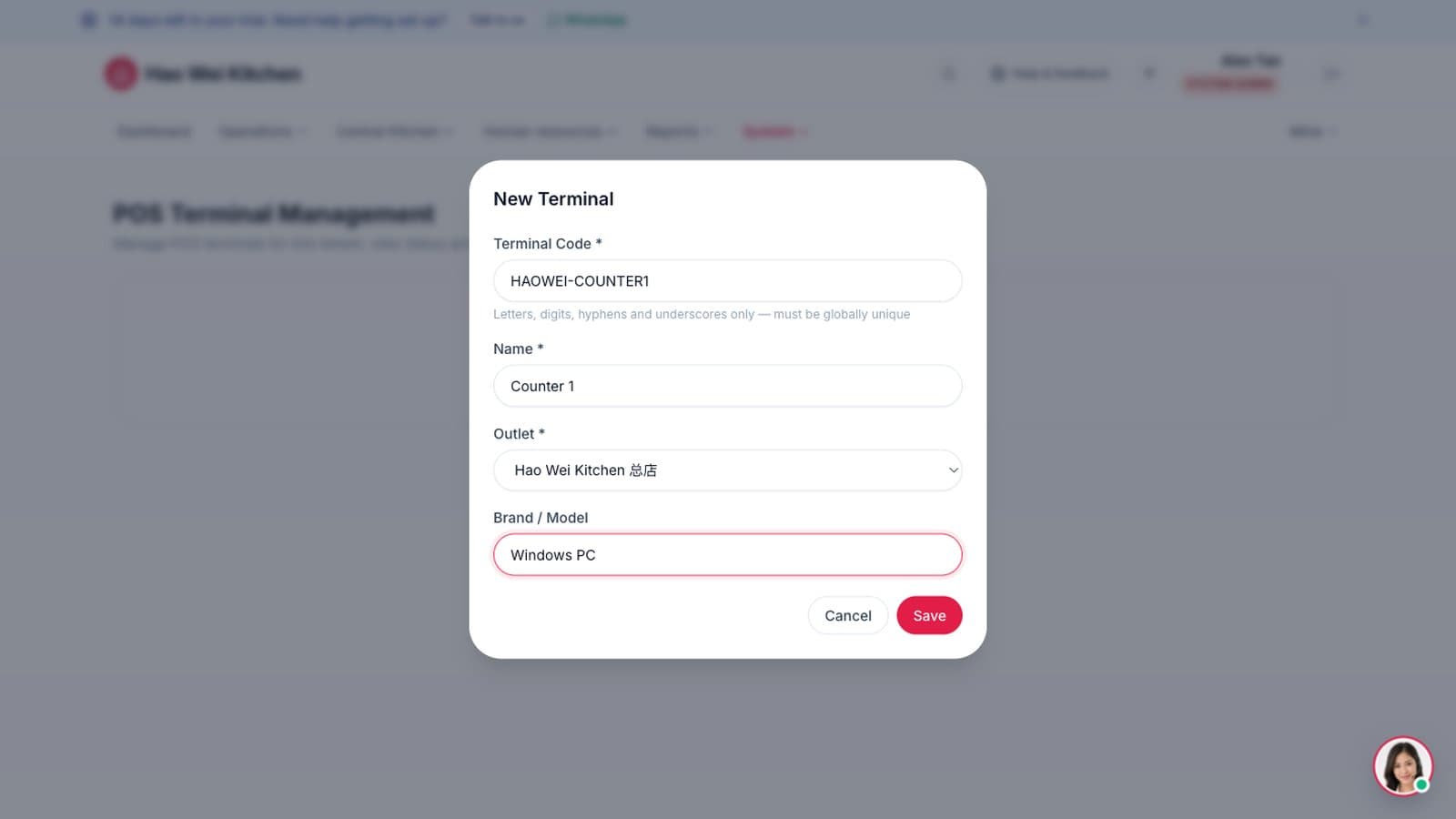
POS terminals. This is the one people miss. Sign-up does not create a register for you, and the POS will not start until it is bound to one. Under System admin, open POS terminals and click New Terminal:
- Terminal Code: letters, numbers, hyphens and underscores, unique across the platform, for example `myshop-counter1`.
- Name: for example "Counter 1".
- Outlet: your first outlet.
Each till PC or tablet is one terminal. The Pro plan allows up to 10. Limits for each plan are on the pricing page.
Step 3: Open the POS for the first time
The POS lives at a different address from the back office: `https://pos-your-code.makancloud.com`. If your back office is `hao-wei-kitchen.makancloud.com`, the POS is `pos-hao-wei-kitchen.makancloud.com`. Use Chrome or Edge, because the printer connection in Step 7 relies on them.
- 1. Log in with the same account.
- 2. The first time, you will see Select Register Terminal. Choose the terminal you just created and click Confirm Binding. The device remembers it from then on.
- 3. The POS tells you there is No Open Shift, just as a real outlet would expect the cashier to count the float before trading. Click Start Shift, enter the opening float and Confirm Open.
The counter is now live. It just has nothing to sell yet.
Step 4: Put your menu into the POS
One thing to get straight first: the menu your cashiers sell from is managed in the POS, and each outlet has its own copy. Product Management in the back office is the catalogue your outlets order from the central kitchen. It does not control what appears at the till. This is the most common mix-up we see.
To get there, tap Settings in the POS top bar, then Menu Management → Edit Menu (Categories / Items). The page shows which outlet you are editing.
A short menu: type it in.
- 1. Click New Category, for example Rice, Noodles, Drinks.
- 2. Click New Item, enter the name and price and pick the category.
- 3. Choose a Kitchen Station: the kitchen printer this dish should print to. Hot dishes go to the hot kitchen, drinks to the bar, and a dish can print at more than one station. You can only pick printers that already exist (see Step 7), so if your printers are not set up yet, leave this for later.
- 4. Add an English name if your menu is in Chinese, or the other way round. It is shown in the English interface and on the customer's QR ordering page.
Set meals such as "Lunch Set A: main plus drink" are built on the same screen by ticking Set as combo and adding selection groups.
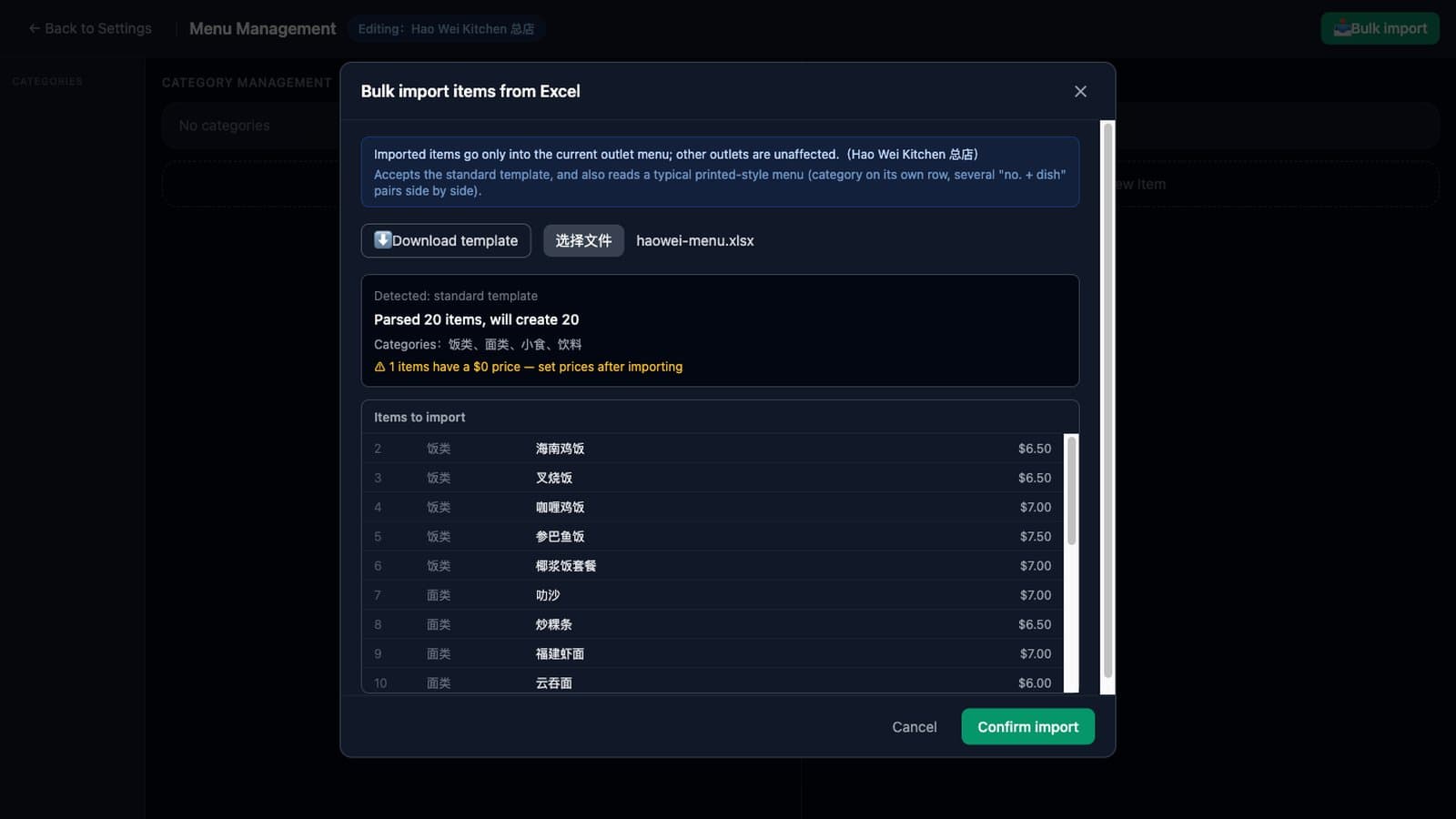
A long menu: import it from Excel. In Menu Management, click Bulk import.
- 1. Click Download template. The columns are category, dish name, English name, price, member price, kitchen station and sort order. The kitchen station column must use station codes of kitchen printers you have already added on the POS (such as hot, cold or bar; see Step 7). An unknown code shows up as an error in the preview and blocks the import. If your printers are not set up yet, leave that column empty.
- 2. Pick your file and click Choose Excel file (.xlsx or .xls, up to 5MB and 2,000 dishes). If you already have a menu spreadsheet laid out for printing, with category headings on their own rows and numbered dishes side by side, upload that as it is. The importer recognises the layout.
- 3. You get a preview first, for example "86 dishes parsed, 86 will be created". Any dish priced at $0 is flagged so you can fix it. Nothing has been saved at this point. Click Confirm import when it looks right. The import either saves everything or nothing, so you never end up with half a menu.
Three things to know about importing. Dishes that already exist in the same category are skipped, so existing prices are never overwritten. Set meals cannot be imported and need to be built by hand. And an import only affects the outlet you are editing. When you open a second outlet, its empty menu page offers Copy menu from an existing outlet, after which the two menus are edited separately.
Step 5: Add dish photos
Photos sell. Customers on the QR ordering page order more readily from a menu with pictures, and cashiers find dishes faster. Edit a dish and click Upload Image:
- JPEG, PNG, WebP or HEIC (so photos taken on an iPhone work), up to 5MB each.
- Square images of about 800 × 800 pixels work best, because the menu crops to a square.
No photos yet? That is fine. During the free onboarding offer, we will generate dish images for you with AI. The images below are from the menu in our demo restaurant, generated the same way. You can see them in context in the demo.
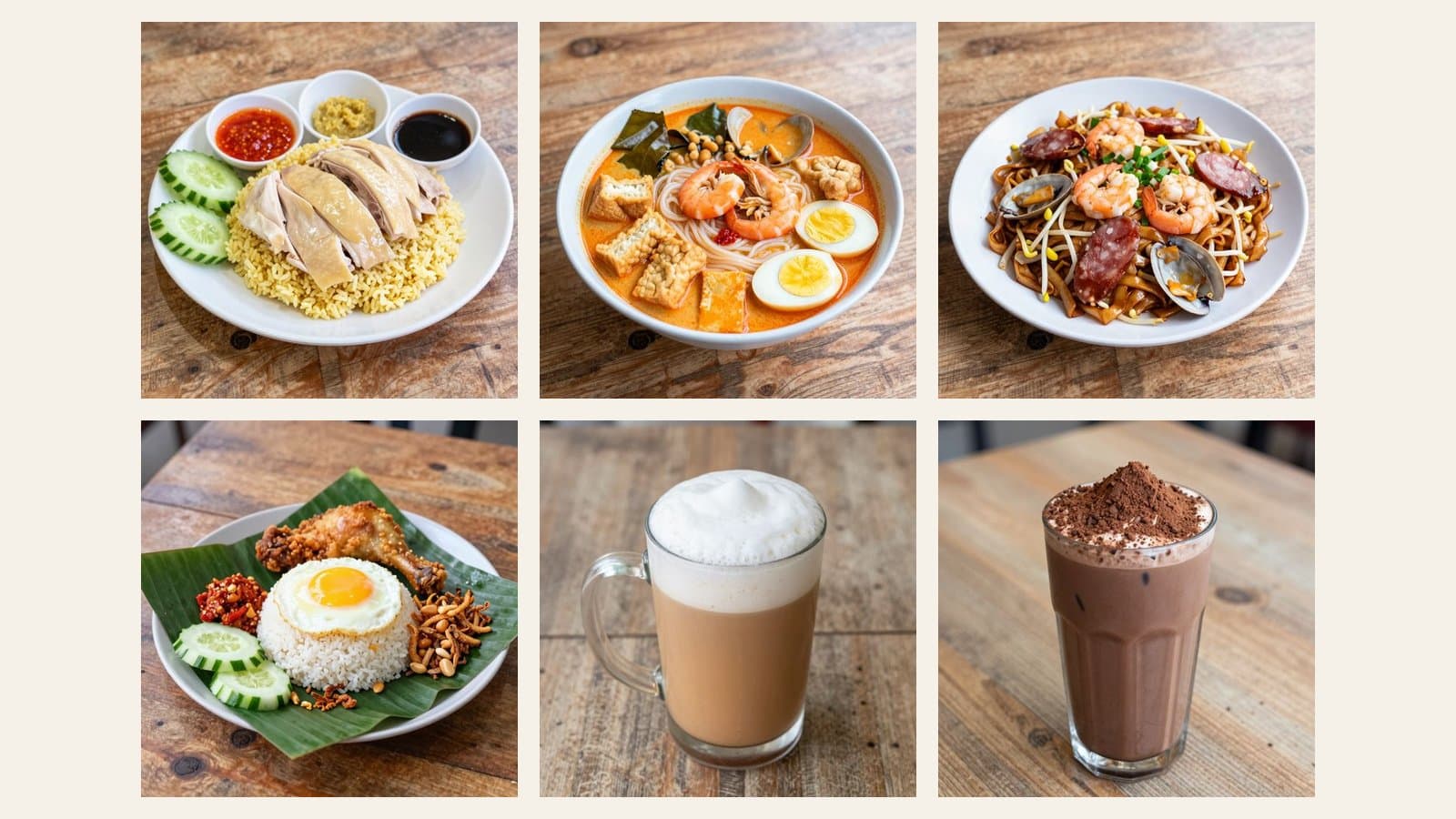
AI images are illustrations, not photographs of your food. Check each one before you go live, and swap in real photos whenever you have them.
Step 6: Check your payment methods
At checkout the POS offers Cash, PayNow, NETS, Credit Card, Card (Terminal), Voucher and, if you run a membership programme, Member Wallet. Cash and a static PayNow QR work from day one with no setup.
For integrated electronic payments, enter your provider's credentials under E-Payment Gateway in Tenant Settings. For Singapore outlets we recommend YeahPay, whose card terminals connect to the POS so the amount is sent to the terminal and nobody re-keys it. You will need a merchant account with the provider first, so it is reasonable to leave this until you have decided MakanCloud is for you.
If you plan to let diners order from their phones, the same page sets QR Self-Order Payment: pay before the order goes to the kitchen, or order now and pay at the counter. Table QR labels are printed from the outlet's page in the back office. Our guide to QR ordering systems in Singapore covers costs and set-up in more detail.
Step 7: Connect your printers
MakanCloud runs in the browser, so printing works like this. A small program called the print bridge runs on the till PC. The browser hands each receipt or ticket to the bridge, and the bridge sends it over your shop's network to the printer. You need three things:
- A till PC running Chrome or Edge (Windows or Linux) to host the print bridge.
- Network printers: standard ESC/POS printers with an Ethernet port, 58mm or 80mm paper. One for receipts, and one for each kitchen station. USB-only printers are not supported at the moment.
- Fixed printer IP addresses: reserve an address for each printer in your router. Otherwise a router restart can change it, and the kitchen stops receiving tickets.
Once the bridge is installed, open Terminal Settings on the POS and work down the page:
- 1. Print Bridge: set the Bridge URL to `http://127.0.0.1:7070`, enter the Bridge token and click Test Connection.
- 2. Receipt Printer: enter the printer's IP (port 9100 by default) and test it.
- 3. Kitchen Printers: click + Add Printer and give it a Station Code such as hot, cold or bar. The code must match the kitchen station you chose for dishes in Step 4, or nothing will print there.
- 4. Use Product Print Rules to send each category to the right printer, then ring up a test order and check that both the receipt and the kitchen ticket come out. If nothing prints, Run Diagnostics on the same page checks the whole cloud → print bridge → printer chain and tells you where it breaks.
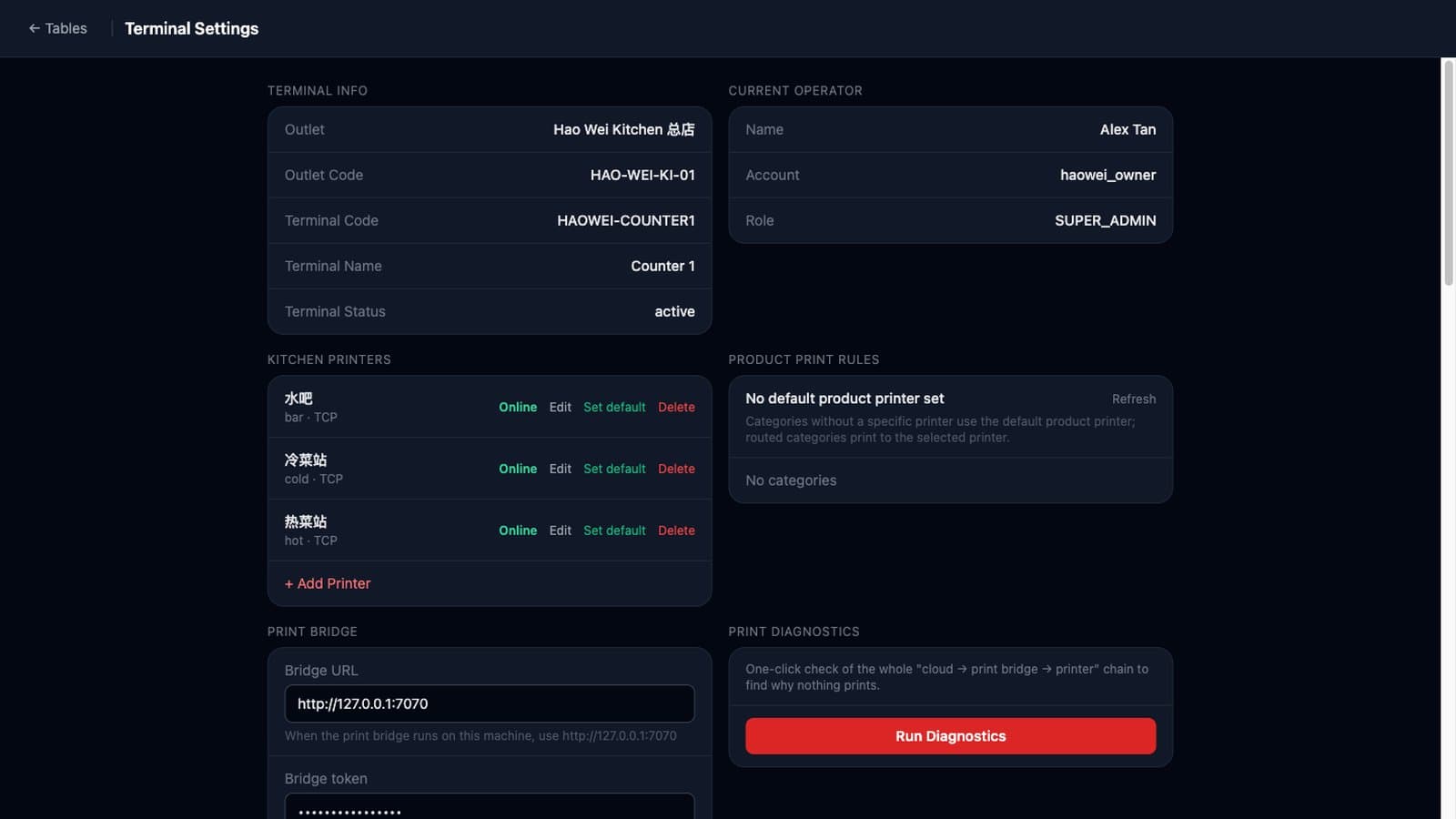
To be honest, this is the most hands-on job of the seven. The bridge install involves a few technical steps, and finding printer addresses means opening your router settings. If you would rather not, hand it to us.
Free onboarding help (limited time)
From 6 October 2026, new sign-ups and customers already on a trial can ask us for three things at no charge:
- Menu set-up, done for you or with you. Send us your menu as a spreadsheet, photos or a PDF, and we will load it into your POS with categories, prices and kitchen stations. If you would rather learn, we will walk you through an Excel import.
- AI dish images. If you do not have food photos, we will generate them with AI, in the style you can see in the demo. Up to 30 dishes for each outlet's first menu.
- Checkout and printer set-up, done for you or with you. GST, service charge, checkout mode, terminals, the print bridge, receipt and kitchen printers. We do this remotely first, over remote desktop or a video call. If an outlet in Singapore has a problem we cannot solve remotely, we can book an on-site visit.
How to ask:
- WhatsApp us at +65 9782 6954. Say you would like the free onboarding help and tell us your restaurant name.
- After you sign up, we contact you on the mobile number you gave us.
- During your trial, the bar across the top of the back office has Talk to us and WhatsApp links. Use either, or click Help & feedback in the top bar and send us a request.
- If you have not signed up yet and want to talk first, leave your details on the demo page.
How long this runs: the offer starts on 6 October 2026 and runs until we announce a change. The latest version of this article is the reference.
A note on AI dish images: they are illustrations, and are not guaranteed to match how your dishes actually look or their portion size. Please check them before going live. Your restaurant remains responsible for the accuracy of dish names, descriptions and prices. Replace the images with your own photos whenever you like. Because this is a free service, it comes with no further guarantee on the images.
Frequently asked questions
Do I need special POS hardware?
No. The back office and the POS run in a browser on an ordinary Windows or Linux PC, or a tablet. You only need network printers for receipts and kitchen tickets, as described in Step 7.
What happens when the 14-day trial ends?
You can choose a plan at any time from Subscription & billing in the System menu. All plan prices are published on the pricing page. If you are still deciding, WhatsApp us at +65 9782 6954 first.
Can I see a working restaurant before setting up my own?
Yes. The demo is a fictional three-outlet chain where you can try the POS, the kitchen display, QR ordering and the owner's reports. Our guided tour of the demo tells you what to click.
Can I use the AI dish images elsewhere?
Yes, on your own menus, ordering pages and promotional material. They are illustrations, though, so do not use them to represent portion size or ingredients.
I have several outlets. Do I set everything up for each one?
GST and service charge are set once and apply to every outlet. Menus are per outlet, but a new outlet can copy an existing menu in one step. Terminals and printers are set up per outlet, because each shop has its own devices and network.
Ready? Start with Step 1: start your 14-day free trial. If you get stuck at any step, ask us to do it with you.
Related articles
- Try MakanCloud in 20 Minutes: A Guided Tour of the Demo RestaurantLeave an email and you are inside a three-outlet Singapore restaurant with 90 days of trading history. This walkthrough shows you what to click, in what order: ring up a sale, order from your phone like a diner, read the owner's reports, reprice a dish, place a central-kitchen order and check the roster.
- Restaurant Staff Scheduling in Singapore: What to Check Before You Publish a RosterA practical guide to rostering restaurant staff in Singapore after the July 2026 Progressive Wage Model increase: the Employment Act and PWM rules a roster has to respect, a checklist to run before you publish, questions to ask when comparing scheduling software, and how MakanCloud generates and checks a monthly roster.
- QR Ordering Update: Sold-Out Dishes, Waiter Calls and Pickup NumbersMakanCloud's QR ordering now has optional settings for sold-out dishes, English dish details and allergens, per-dish notes, calling a waiter, party size, menu banners, counter pickup numbers, order progress and e-receipts. Everything is off or empty by default. Here is what each one does and where to switch it on.
Curious how MakanCloud would fit your outlets?
14-day free trial, no credit card required — or book a 15-minute demo and we’ll walk through your setup directly.