QR Ordering Update: Sold-Out Dishes, Waiter Calls and Pickup Numbers
By Alex · Founder, MakanCloud · 9 October 2026
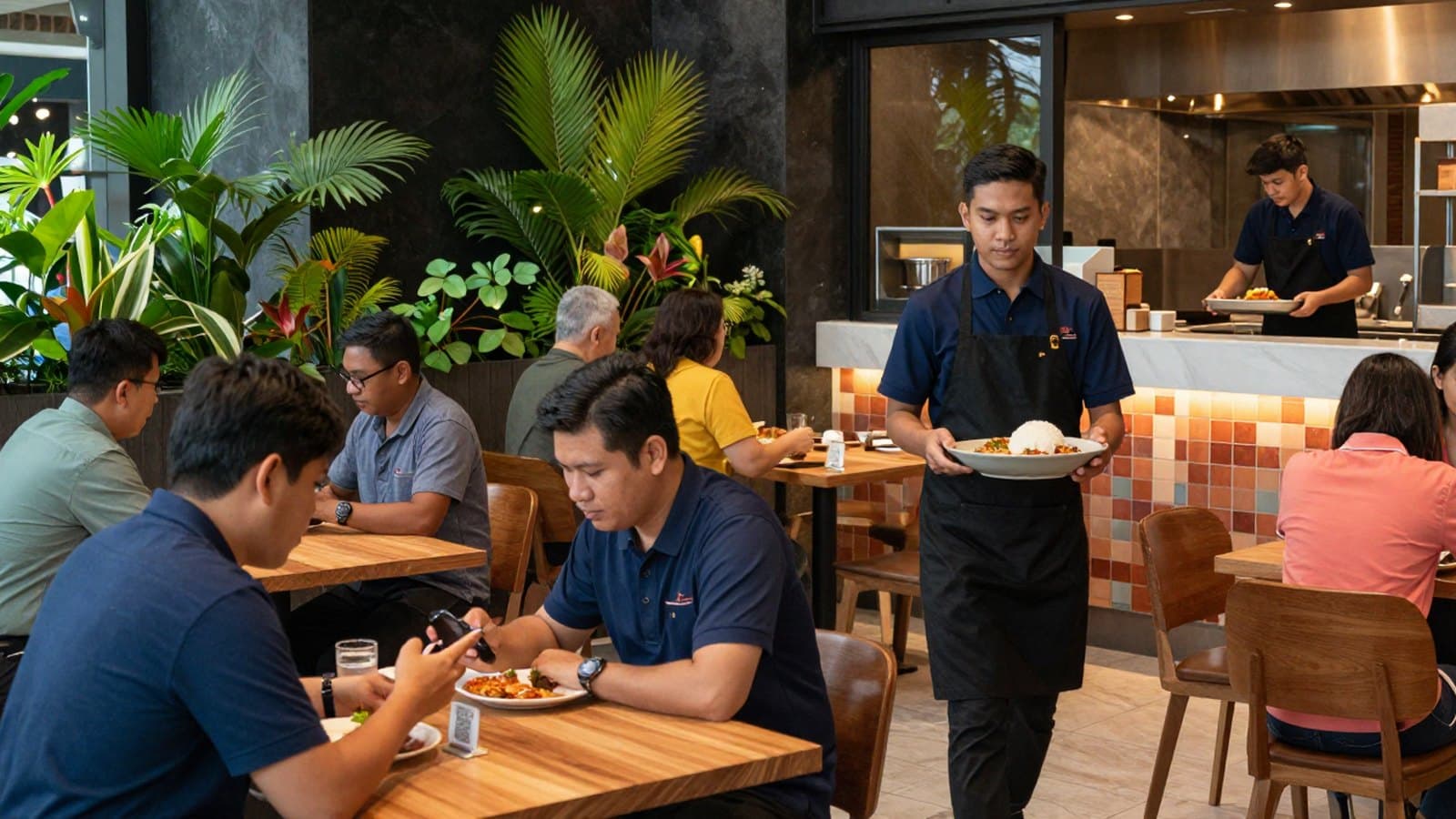
QR ordering usually goes wrong in the same few places during a busy service. A dish runs out but customers keep ordering it, and your cashier ends up walking to the table to explain and fix the bill. Someone wants water or the bill and has to wave until a server notices. At a counter-pickup shop, customers who have paid crowd the pass asking whether their food is ready.
We have added a set of settings to MakanCloud's QR ordering for these moments. None of them change what your customers see until you decide to use them. The ones that change how customers or the kitchen work are switches that start in the off position. The ones that need content, such as banners or English descriptions, show nothing until you fill them in. If you do nothing, your ordering page stays exactly as it is today.
This guide goes through each setting, what it does on the floor, and where to find it. Button names are as they appear in the English interface.
On the menu
Sold out
In the POS, open Menu Management, find the dish and tap Sold out. You get two choices:
- Sold out today comes back on its own at 05:00 the next day, so nobody has to remember to switch it back before lunch.
- Until restored stays sold out until someone taps Restore. Use it for a dish that is off the menu for a week while a supplier sorts out stock.
The dish is greyed out on the customer's QR menu and on the cashier's ordering screen straight away. If a customer already had it in their cart, the order is stopped with a message instead of quietly dropping the dish, so they never pay for something the kitchen cannot make. On the cashier side, the dish cannot be tapped or scanned in, but the POS will still accept orders that were rung up offline earlier and synced later.
Dish details: English description, units, tags, spice level, allergens
Also in Menu Management, each dish now has a few optional fields:
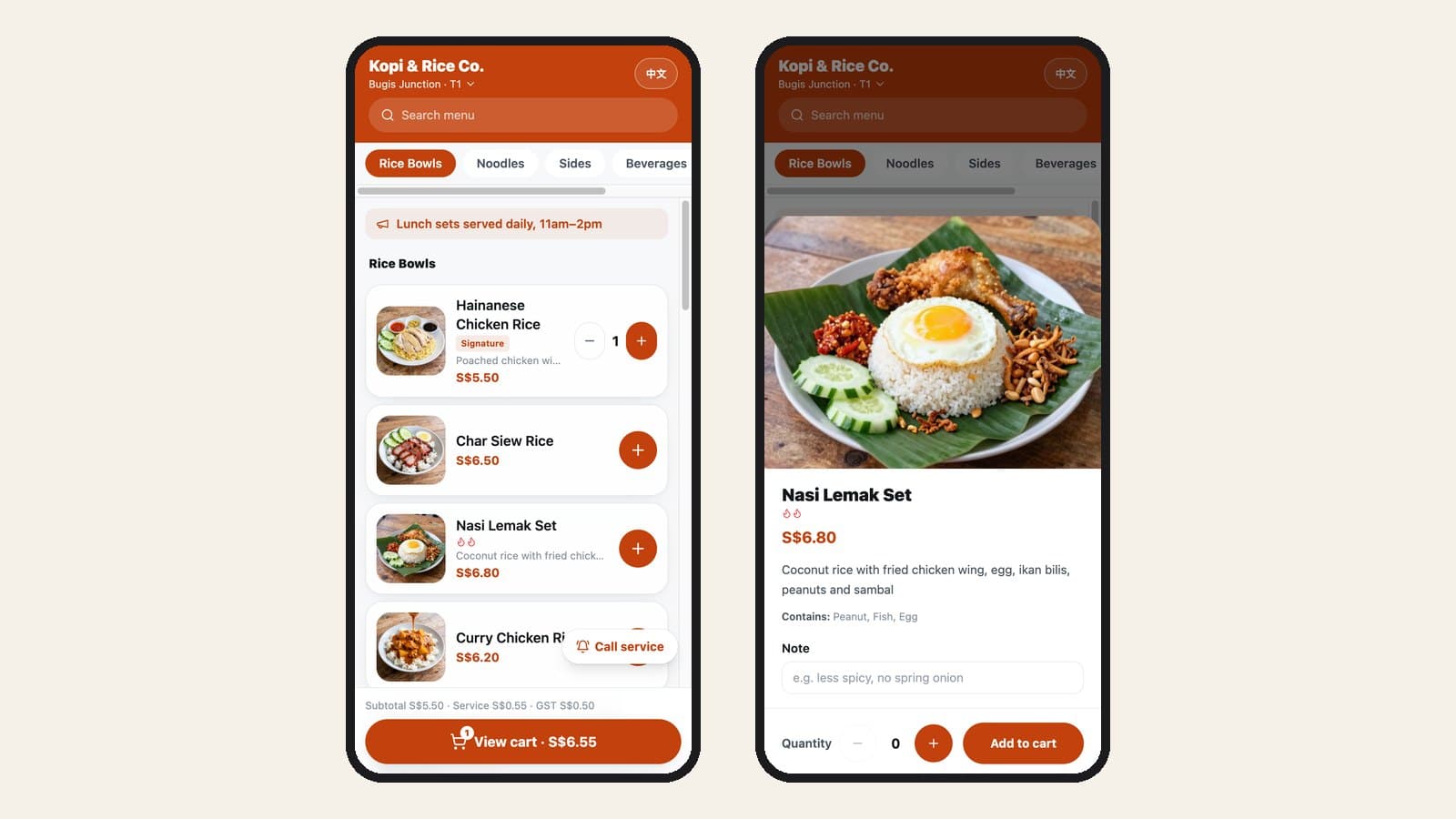
- English description, shown when the customer switches the menu to English. Useful if your Chinese menu names mean nothing to half your lunch crowd.
- Display unit, printed after the price: `$9.60 / 6 pcs` reads better than `$9.60` for dumplings.
- Tags and spice level, picked from a fixed list so they look the same across every dish.
- Allergens, also from a fixed list. Treat them as a guide for customers, not a guarantee. The customer menu does not add a disclaimer of its own, so keep your usual allergy notice in the shop and keep briefing staff to answer allergy questions directly.
If you load menus by Excel, the import template has six optional columns for these fields. Leave them blank and nothing changes.
Notes on individual dishes
With QR ordering: allow notes on individual dishes switched on, customers can add a short note (up to 60 characters) to a single dish: "less spicy", "no spring onion", "sauce on the side". The note prints in bold under that dish on the kitchen ticket and appears on the KDS. For set meals, the note is attached to the set as a whole.
This is off by default because it changes what lands in front of your kitchen. Turn it on once your cooks know to look for it.
At the table
Call waiter and request bill
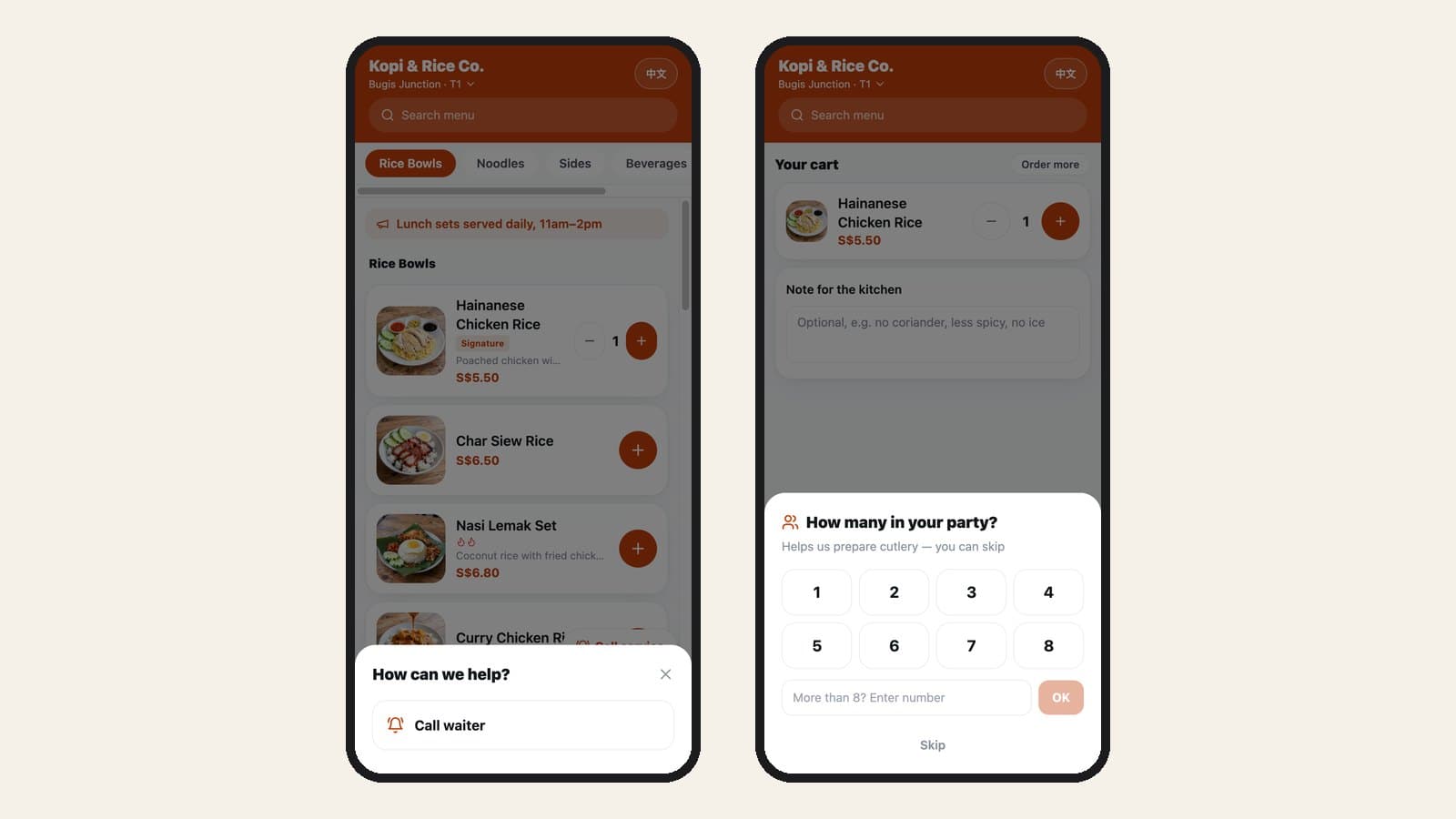
Switch on Self-order: call waiter / request bill and a Call service button appears on the customer's menu. Tapping it gives two options, Call waiter and Request bill, and a banner pops up on your cashier screens (not on the KDS) showing the table. Once a staff member handles it, it clears for everyone.
A few details worth knowing:
- Request bill only appears if your customers order first and pay at the counter afterwards. In prepay setups there is no bill to request, so the option is hidden.
- If a table taps the same request twice before anyone responds, it shows once on your screen. A phone also has to wait 60 seconds between requests, so a bored child cannot keep your banner flashing.
- For a sound alert, open Settings on each POS and turn on Guest Request Chime. Browsers block sound until the screen is touched once, so after opening the POS, tap anywhere once to enable it.
Party size
With Self-order: ask party size on first order on, the first person at a table to place an order is asked how many are dining. They can skip it. The number shows on the table card in the POS, the KDS order header and the kitchen ticket header, which helps the kitchen plate sharing dishes and helps servers bring the right number of bowls and cutlery. It is asked once per table visit, not on every order.
Banners and promo text at the top of the menu
Under Tenant Settings, the Self-order menu header section lets you upload up to three banner images (21:9 works best) and one line of promo text in Chinese and English, up to 80 characters each. Use it for "Set lunch available 11am to 2pm" or a new seasonal dish.
The promo text is for display only. It does not apply any discount or change any price, so if the promo is a discount, set the price on the dish itself. Leave the section empty and nothing shows.
For counter pickup
Pickup points and pickup numbers
If customers collect food at the counter, open Table Management in the POS and set a QR code's type to Pickup point. You can change a code's type only while that table is empty. You print it like any other table QR code.
A pickup point behaves differently from a table:
- Many strangers scan the same code, so each phone has its own cart and only sees its own orders. Two customers ordering at the same time never see each other's dishes.
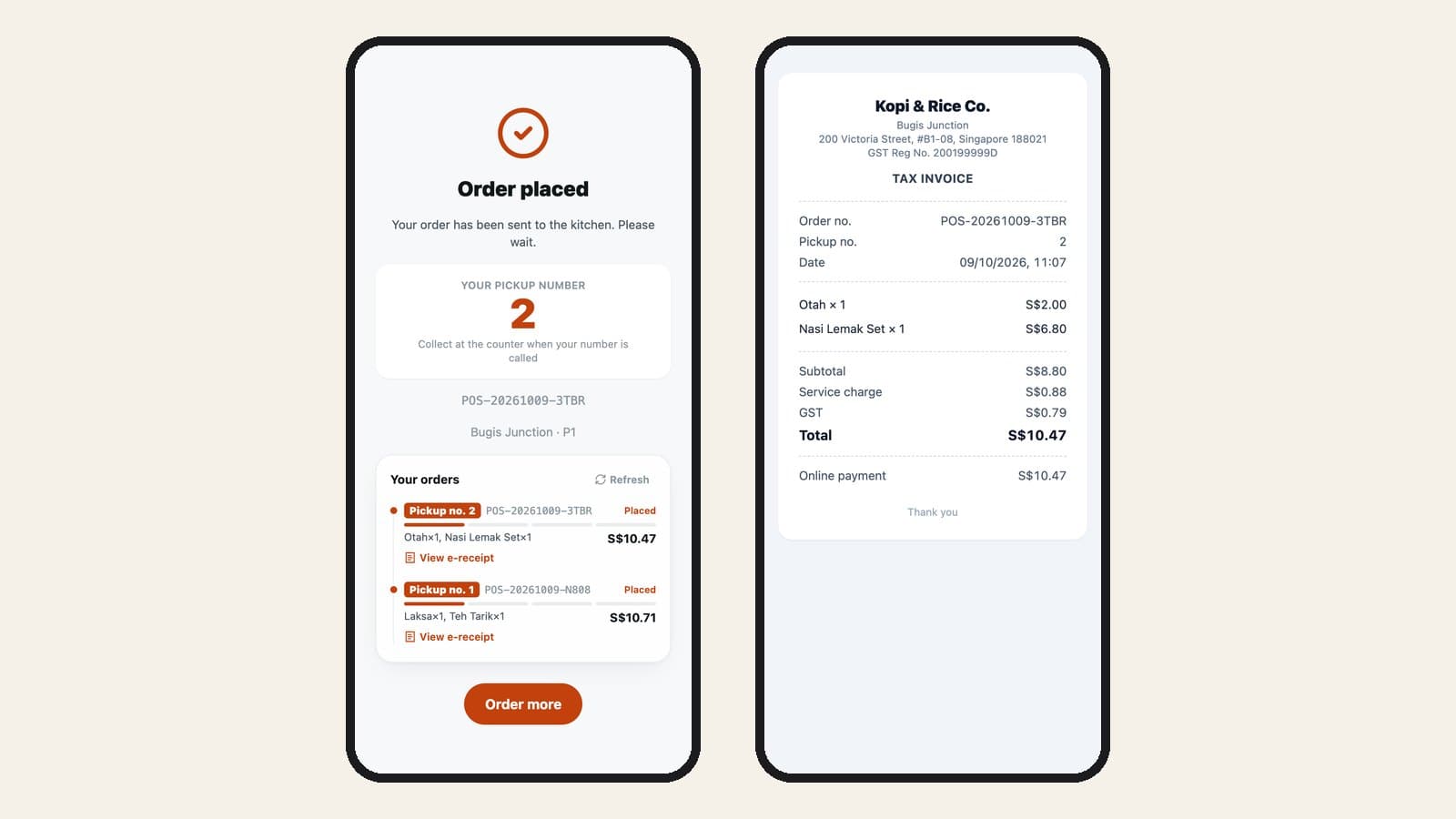
- When an order is sent to the kitchen, it gets a pickup number for the day. For prepaid orders that is the moment payment goes through. Numbers count up per outlet and start again at 05:00 each business day.
- The number is shown in large type on the customer's phone and printed on the KDS order, the kitchen ticket and the receipt, so the kitchen and the counter call the same number.
- Pickup orders appear in a Pickup orders panel at the bottom of the cashier screen, where staff can confirm payment, collect payment or mark an order as picked up. This works whether your POS runs in counter mode or table-service mode.
- A pickup point never shows up on your table map as occupied, never asks for party size and has no Call service button.
If you never create a pickup point, none of this appears.
Order progress for customers
With Self-order: show kitchen progress to guests on, customers see their order move through Placed → Preparing → Ready → Done on their phone.
Only switch this on if your kitchen marks dishes as ready or served on the KDS. Progress is read from the KDS, so a kitchen that works only from printed tickets would leave every order stuck at "Preparing", which is worse than showing nothing.
E-receipts
There is nothing to switch on here. Once a QR order is fully paid, a View e-receipt link appears in the customer's order list. Unpaid orders show no details. If your GST rate is set above zero, the receipt is headed "Tax Invoice" and shows your GST registration number; otherwise it is a plain receipt.
Which ones should you turn on?
A quick way to decide:
- Every outlet: use Sold out during service. Add English descriptions if a good share of your customers read English first.
- Dine-in restaurants where customers pay at the end: Call waiter / request bill and party size take the most walking off your floor staff. Add per-dish notes once the kitchen is ready for them.
- Counter-pickup shops, food court stalls and cafés: set up a pickup point. Add order progress only if your kitchen uses the KDS.
The switches for per-dish notes, call waiter, party size and order progress are in the back office under System → System admin → Tenant Settings, alongside the banner section. Sold out, dish details and pickup points are in the POS, under Menu Management and Table Management. Changes made there apply to that outlet's menu and tables.
If you are new to QR ordering and want to know what it costs to run in Singapore, read our QR ordering cost guide.
Already on MakanCloud and want a hand setting any of this up? Message us on WhatsApp at +65 9782 6954 and we will walk through it with you.
Related articles
- Restaurant Staff Scheduling in Singapore: What to Check Before You Publish a RosterA practical guide to rostering restaurant staff in Singapore after the July 2026 Progressive Wage Model increase: the Employment Act and PWM rules a roster has to respect, a checklist to run before you publish, questions to ask when comparing scheduling software, and how MakanCloud generates and checks a monthly roster.
- QR Ordering in Singapore: What It Actually Costs (2026)The subscription is the small number. Using published Singapore rates as of 31 August 2026, here is the full cost of running QR ordering — software, payment rails, hardware, and the two weeks of setup nobody quotes for.
- How to Open a Second Restaurant Outlet in Singapore: The Operating SideA practical checklist for Singapore F&B owners opening a second outlet: what to write down before you leave the first one, how to keep dishes the same, who runs which outlet, how stock moves between them, and how to read two outlets' numbers side by side.
Curious how MakanCloud would fit your outlets?
14-day free trial, no credit card required — or book a 15-minute demo and we’ll walk through your setup directly.