Try MakanCloud in 20 Minutes: A Guided Tour of the Demo Restaurant
By Alex · Founder, MakanCloud · 6 October 2026
Updated 6 October 2026: the demo now includes QR ordering you can pay for with a Stripe test card, photos on every dish, and an English / Chinese switch on the POS. The back-office menus have been regrouped by function and the tour now has six steps. The steps below reflect the new version.
Every restaurant software website says "multi-outlet", "central kitchen" and "real-time reports". What none of them can tell you from a feature list is how it feels on a Tuesday: how many taps a cashier needs, when the kitchen sees the ticket, and which page an owner opens the next morning to find out which outlet is slipping.
So instead of asking you to book a call first, we built a demo you can use on your own. This guide is the map. Follow it in order and in about 20 minutes you will have taken a sale at the counter, ordered from your own phone as a diner, watched both land in the owner's reports, sent a supply order to the central kitchen and seen the roster from a staff member's phone.
What is inside the demo
The demo is a fictional Singapore chain called Kopi & Rice Co.:
- Three outlets at Tampines Hub, Jurong Point and Bugis Junction, each with eight tables.
- A bilingual menu with photos of local favourites (chicken rice, laksa, char kway teow, teh tarik, Milo Dinosaur) across rice, noodles, sides, drinks and set meals.
- About 90 days of trading history, so reports show real trends rather than empty tables.
- A central kitchen with suppliers, purchase orders and weekly supply orders from each outlet, plus a third-party cold-storage partner.
- A staff team spread across the outlets, with a published roster.
All of it is generated demo data, not a real restaurant. The environment resets once a night at 4:30 am Singapore time, so any price you change, order you place or sale you ring up is gone by the next morning. You cannot break it.
Getting in
Go to the MakanCloud demo page and enter your email. Restaurant name, your name and phone are optional. Submit, and you are taken straight into the back office as the Director, the owner's view. You do not have to wait for an email.
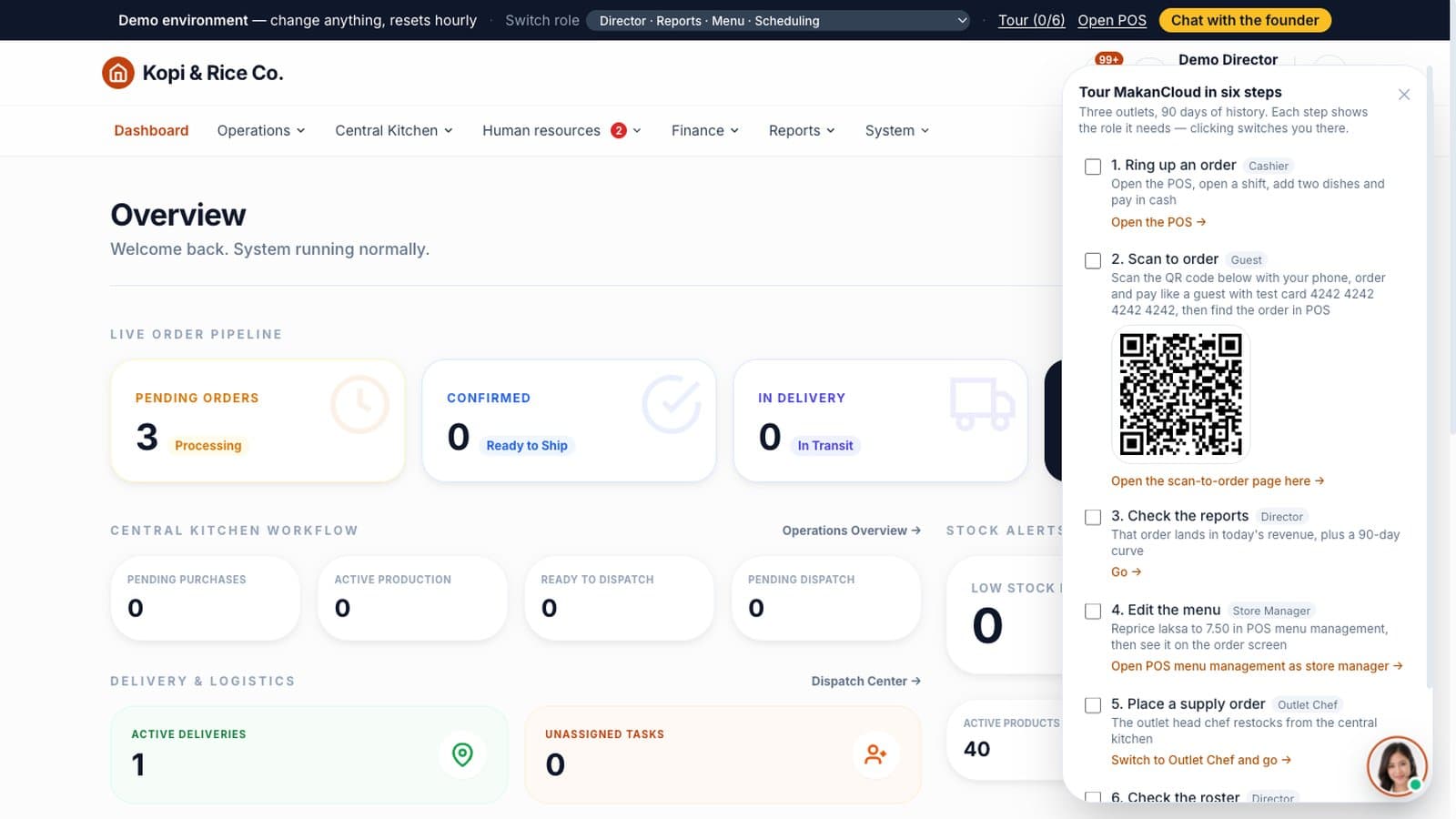
Everything in the demo is driven from the dark bar across the top of the screen:
- Switch role: a dropdown of 11 roles grouped into Head office, Outlets & frontline, and External. Pick one and you are signed in as that person. No password needed.
- Tour: a six-step checklist (ring up an order, scan to order, check the reports, edit the menu, place a supply order, check the roster). Each step shows which role it needs and switches you there in one click.
- Open POS: jumps to the point-of-sale app.
- Chat with the founder: for questions once you have looked around.
The 中 / EN button at the top right switches the interface language at any time, and the POS has its own 中 | EN toggle in its top bar.
Step 1: Ring up a sale on the POS
This step is worth doing yourself, because it connects everything that follows.
- 1. Click Open POS in the banner. The cashier login is already filled in; just click Log In.
- 2. If you are asked to select a POS terminal, choose the Tampines Hub counter and click Confirm Binding. Your browser remembers the choice.
- 3. The POS will say No Open Shift. That is deliberate: in a real outlet the cashier counts the float before trading. Click Open Shift, pick a $100 float and confirm.
- 4. On the table map, tap a table such as T2. Switch categories on the left and tap + to add a couple of dishes and a drink. Every dish has a photo, so the cashier can find it at a glance.
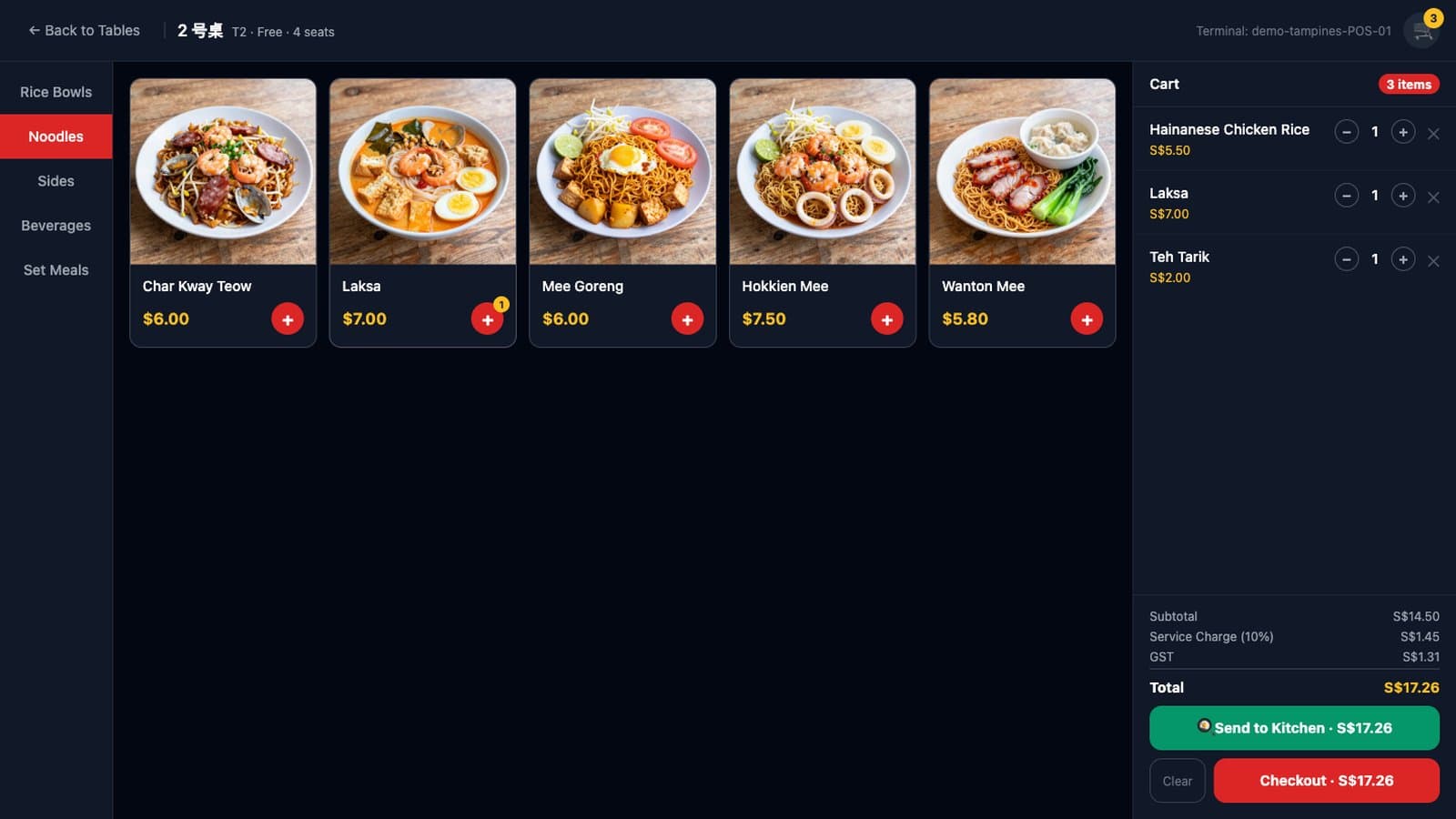
- 5. Tap Send to Kitchen. You will see a note that the kitchen ticket did not print. The demo has no printer attached, so ignore it; the order is saved.
- 6. To see the kitchen side, change the end of the address in your browser to /kds. Within a few seconds your table's order appears on the kitchen display, split by station, with a start button for each dish.
- 7. Tap Back to Cashier, open the same table and tap Checkout. Tap a quick cash amount and Confirm Cash Payment. The POS works out the change. If your browser opens a print dialog for the receipt, close it.
The POS in the demo never takes a real payment, so always use cash when you check out at the counter.
Step 2: Order from your phone, as a diner would
More and more outlets let diners scan a QR code on the table, order and pay without waiting for staff. Every table in the demo has a working QR code:
- 1. There are two places to find one. On the POS table map, the green Scan-to-order demo button in the top bar shows a code for any table from T1 to T8. Or open the Tour in the back-office banner: the Scan to order step has a QR code built in. No phone handy? Click Open the scan-to-order page here to open the same page in your browser.
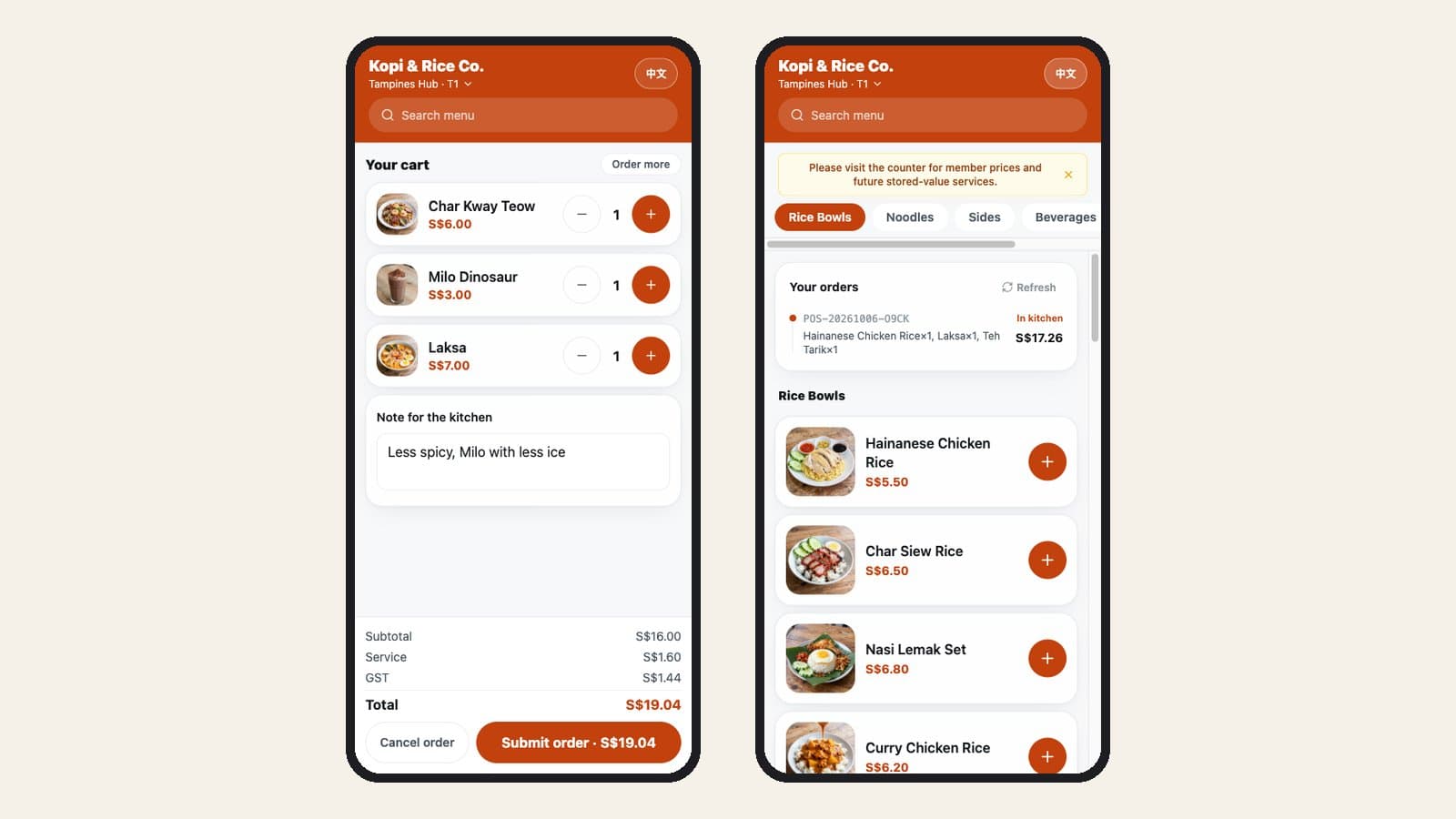
- 2. Scan it with your phone. What you see is exactly what a diner sees: the menu with photos, and a language switch at the top. Add a few dishes and leave a note for the kitchen, such as "less spicy".
- 3. Submit, and you reach the payment page. This is connected to Stripe's test mode: use card number 4242 4242 4242 4242, any future expiry date and any three-digit CVC. Nothing is charged.
- 4. Go back to the POS. The table now has an open order. Open /kds and the order is on the kitchen display, split by station, with the diner's note at the top of the ticket.
The demo uses pay first: the order only reaches the kitchen once it is paid, so nobody walks out without paying. A live outlet can switch to ordering first and paying at the counter instead. For costs and set-up, see our guide to QR ordering systems in Singapore.
Step 3: Read the reports the way an owner would
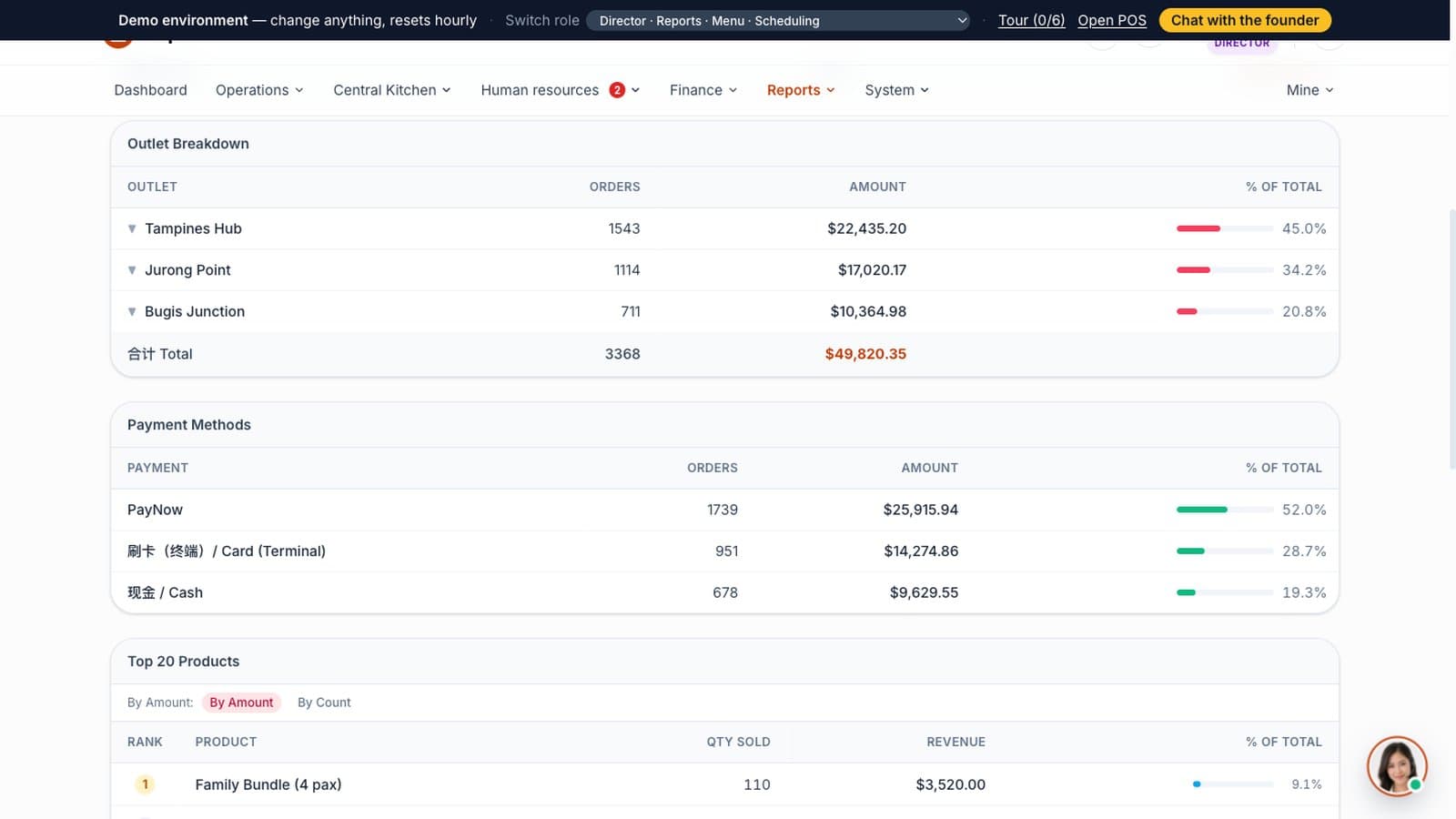
Switch back to Director, open the Reports menu and choose Order Report, then the POS Sales tab, and click Last 30 Days.
This is the page built for the owner's first coffee of the day:
- Total revenue, order count and average ticket across the group.
- Outlet Breakdown: what each outlet sold and its share of the total. In the demo data, Tampines Hub carries over 40% of sales while Bugis Junction brings in around a fifth. In your own business, that gap is where the next conversation with an outlet manager starts.
- Payment Methods: how much came in through PayNow, card terminals and cash.
- Top 20 Products, ranked by revenue or by quantity.
- Hourly Distribution, which shows your lunch and dinner peaks at a glance.
The sale you just rang up and the order you paid for on your phone are already in there. Every transaction at the counter reaches the owner's reports the same day, not at month-end.
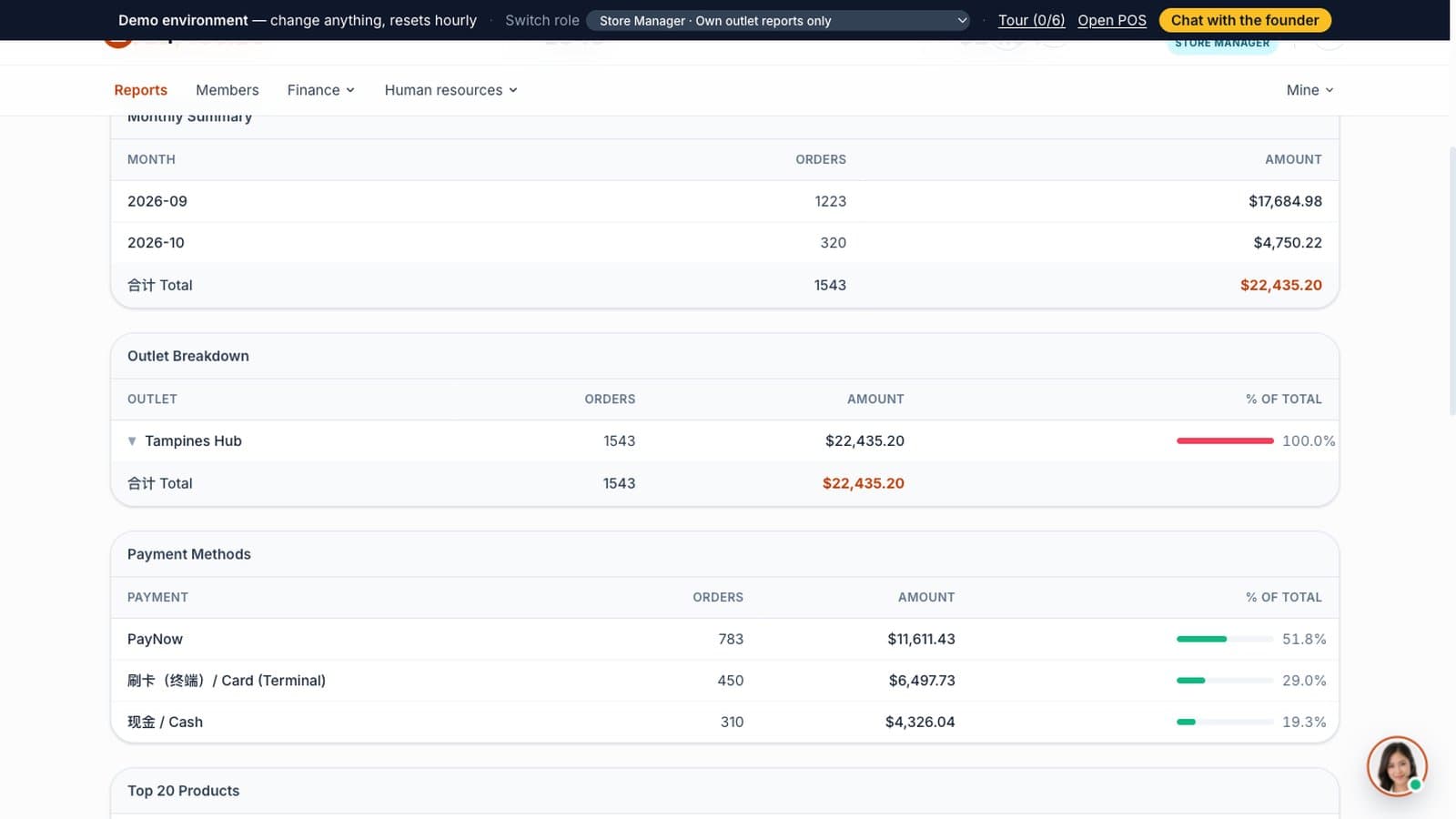
Now switch to Store Manager and open the same report. Only Tampines Hub is left. A store manager sees their own outlet and nothing else. The system enforces that by role; it does not rely on people choosing not to look.
Step 4: Change a menu price and watch the POS pick it up
Repricing is one of the jobs owners do most often. In MakanCloud each outlet has its own POS menu, edited from Menu Management on the POS, which only store managers and above can open.
- 1. Open the Tour in the banner and click Open POS menu management as store manager on the Edit the menu step. The login page is already filled in with the store manager account; click Log In and you land straight in Tampines Hub's menu management. (If you skipped the POS step and this browser has not selected a terminal yet, you will be asked to pick one first, then reach Menu Management from Settings.)
- 2. Choose the noodles category (shown under its Chinese name, 面类), find 叻沙 (Laksa), click Edit, change the price from 7 to 7.50 and save.
- 3. Go back to the table map, open any table and switch to Noodles: laksa now shows $7.50, and the next order is charged at the new price.
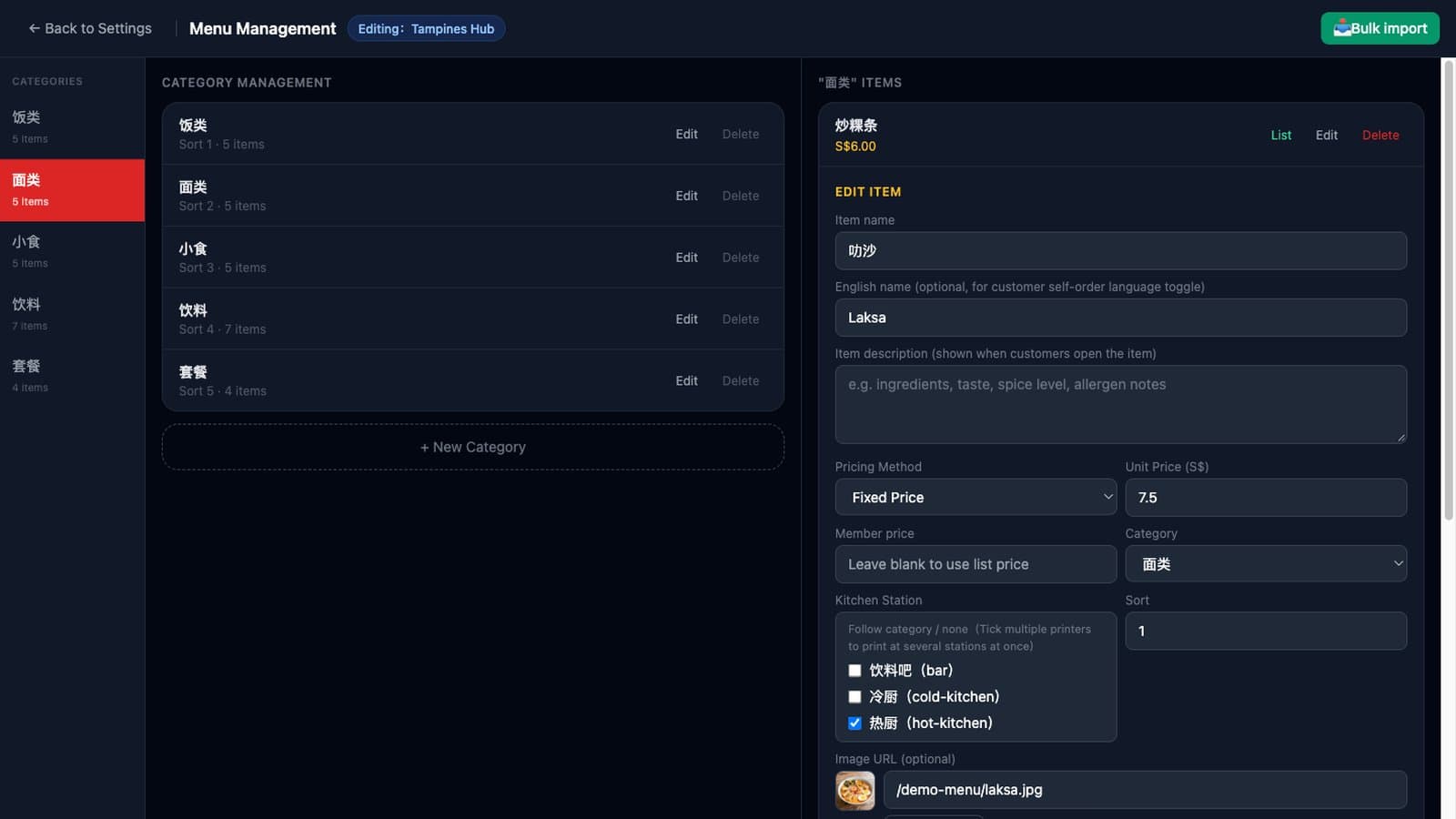
The same screen changes the dish photo, sets the English name shown in the English interface and on the customer's QR ordering page, routes the dish to a kitchen station, or takes it off the menu for the day. Whatever you change goes back to normal at the nightly reset.
Step 5: Send a supply order to the central kitchen
If you run a central kitchen, the daily scramble of voice notes and handwritten order lists is probably familiar. Here is the same job done in the system.
- 1. Switch to Outlet Chef. You land on the product catalogue: everything the central kitchen can supply, from prepared items to raw ingredients.
- 2. Add a few items and open the Cart. The receiving outlet is shown at the top. Pick an expected delivery date, add a remark if you like, and Submit Order. It goes in as Pending.
- 3. Switch to Kitchen Manager and open Orders → Pending. Your order is at the top, next to this week's orders from the other two outlets. The kitchen can process each one, or select several and print a single picking list.
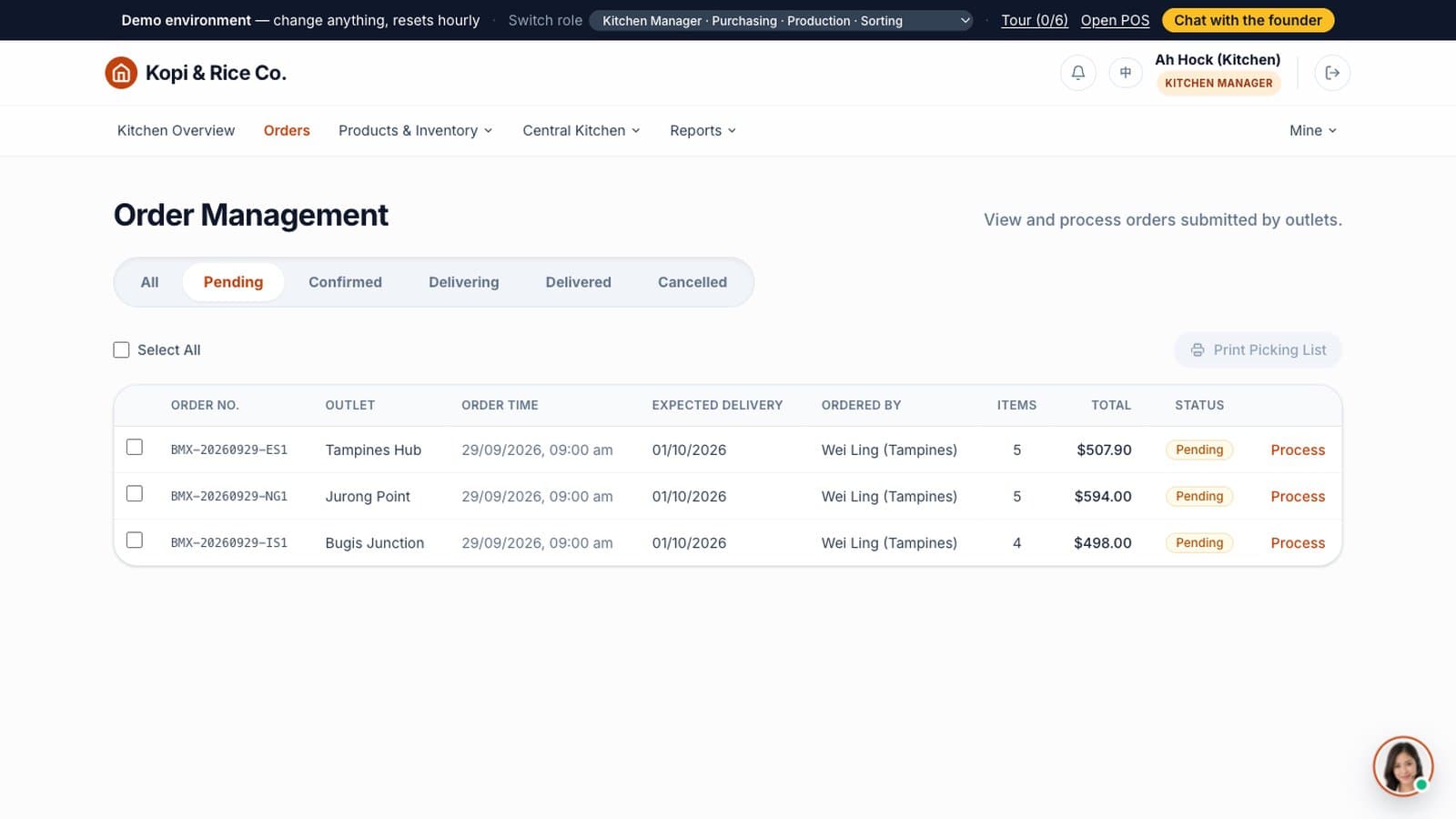
The Kitchen Overview page also shows recent purchase orders and their delivery status. Purchasing, recipe-based production, sorting by outlet, dispatch and delivery all run in the same system, and dispatch records a temperature check: anything above 8°C cannot be released. For a fuller picture of what that chain involves, read Central kitchen software: what actually runs a commissary.
Step 6: Check the roster, then see it as a staff member
- 1. As Director, open the Human resources menu at the top and choose Scheduling (or click Go on the Check the roster step of the tour). Here you will find staff profiles, skills, shift templates, staffing requirements and public holidays, plus a leave request waiting for approval.
- 2. From the same Human resources menu, open Schedule Export / Print, pick a month and open the printable roster: every day, every outlet, who works which shift and in what role. It also exports to Excel.
- 3. Switch to Employee. A staff member's top bar has just three items: My Schedule, notifications and their own menu. They land on My Schedule, showing their own published shifts, with a leave request form alongside where they can attach an MC for sick leave.
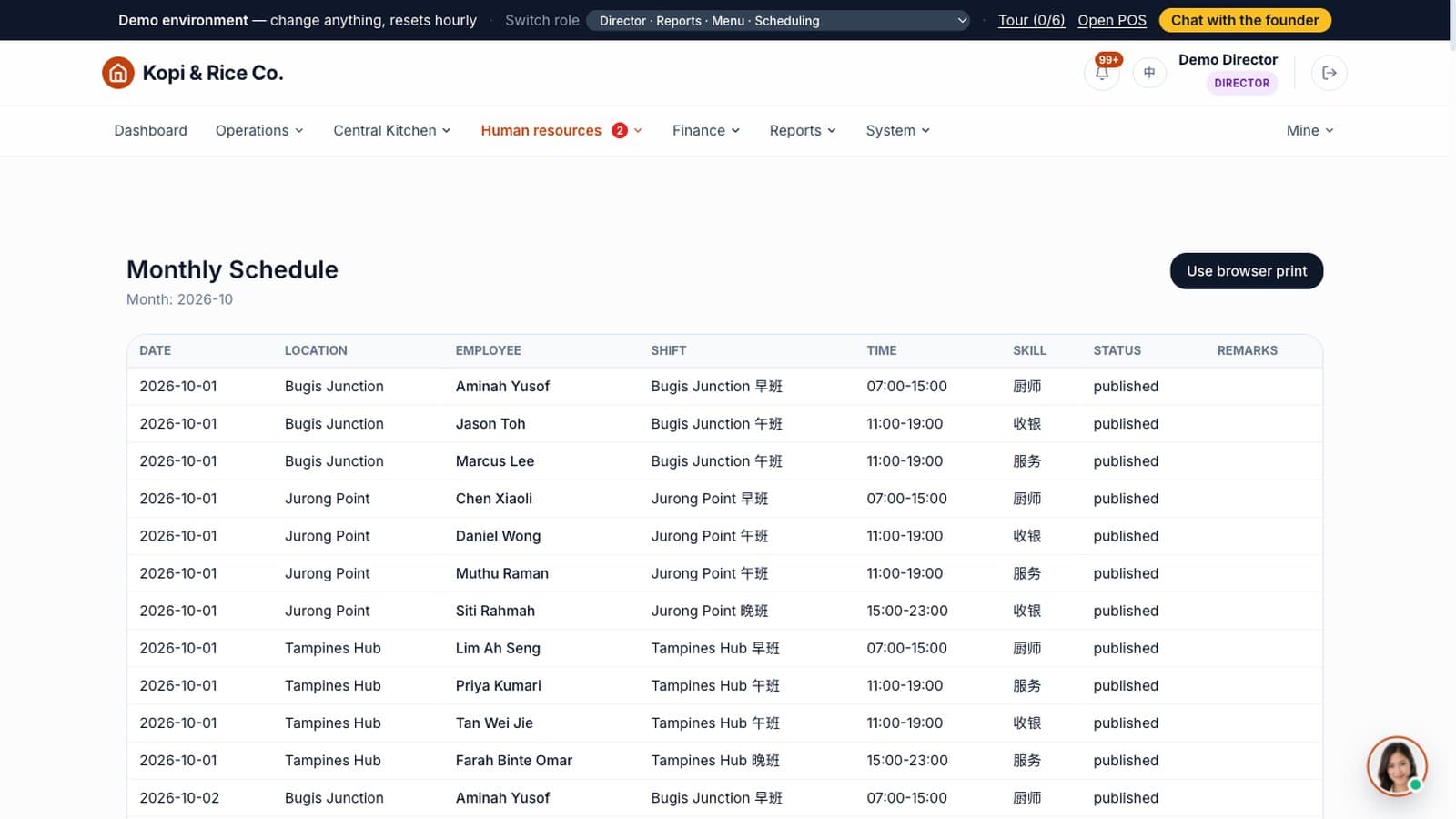
The Director's Human resources menu also holds demo data for hiring, onboarding and offboarding if you want to look further.
The other roles, in one line each
The role switcher has a few more. If you have time, open each one:
- Admin Staff: user accounts and roster approvals.
- Operations Manager: cross-outlet reports.
- Kitchen Staff: receiving and production in the central kitchen.
- Driver: today's delivery tasks, nothing else.
- Partner Admin: a cold-storage partner managing consigned stock.
- Accountant: a read-only month-end review page. This is sandbox data; the finance module is not yet open to live customers, and availability will be confirmed in writing.
What you can and cannot do in the demo
Go ahead and try: take orders, check out, order from your phone and pay with the test card, change menu prices, change table status, place supply orders, run reports, switch to any role and click anywhere. Everything resets overnight.
Switched off in the demo: changing passwords, deactivating accounts, tenant and payment settings, sending or receiving email, real payments (QR ordering uses a test card), and printing receipts or kitchen tickets. The page will tell you when you hit one of these.
One rule matters more than the rest: the demo is public, so please do not enter real staff, customer or supplier details, or real phone numbers and emails.
Frequently asked questions
Do I need to install anything?
No. The back office and the POS both run in a browser on a laptop or tablet. For a live outlet, we help set up printers and other hardware remotely, and on site when needed.
Is the demo data from a real restaurant?
No. Kopi & Rice Co., its outlets, staff and orders are all generated. We never use a real customer's data in a demo.
Will my changes still be there tomorrow?
No. The demo resets every night at 4:30 am Singapore time, so each morning starts from the same clean restaurant. Later in the day you may see changes other visitors have made.
I like what I see. What is the next step?
Start a 14-day free trial and set up your own menu and outlets. Our getting-started guide takes you from sign-up to your first receipt, and for a limited time we will load your menu, create dish images and set up your printers for free. Plans are listed on the pricing page, so you can work out the cost before talking to anyone. Questions? WhatsApp us at +65 9782 6954. If you are comparing systems, our guide to restaurant POS pricing from one outlet to five sets out what to ask each vendor.
Twenty minutes of clicking will tell you more than any feature list. Open the demo now and see whether MakanCloud fits the way your restaurant runs.
Related articles
- Getting Started with MakanCloud: From Sign-up to Your First ReceiptYou have started a free trial. Now what? This guide walks through the seven jobs between sign-up and a working counter: account, POS terminal, first shift, menu import, dish photos, GST and payments, and printers. For a limited time we will do the fiddly parts for you, free.
- Restaurant Staff Scheduling in Singapore: What to Check Before You Publish a RosterA practical guide to rostering restaurant staff in Singapore after the July 2026 Progressive Wage Model increase: the Employment Act and PWM rules a roster has to respect, a checklist to run before you publish, questions to ask when comparing scheduling software, and how MakanCloud generates and checks a monthly roster.
- QR Ordering Update: Sold-Out Dishes, Waiter Calls and Pickup NumbersMakanCloud's QR ordering now has optional settings for sold-out dishes, English dish details and allergens, per-dish notes, calling a waiter, party size, menu banners, counter pickup numbers, order progress and e-receipts. Everything is off or empty by default. Here is what each one does and where to switch it on.
Curious how MakanCloud would fit your outlets?
14-day free trial, no credit card required — or book a 15-minute demo and we’ll walk through your setup directly.